 Go to Kayako Classic
Overview
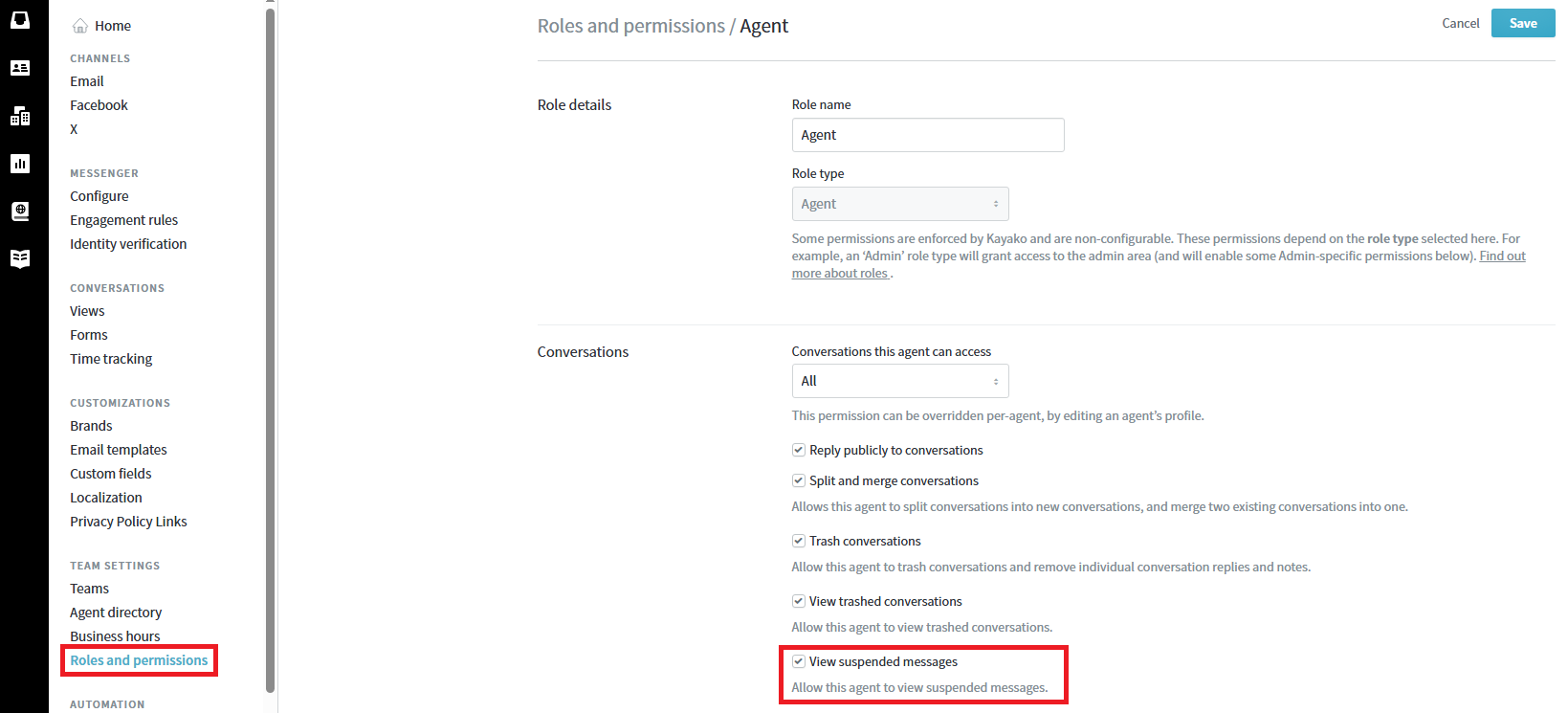
You can disable the 'View suspended messages' permission at the role level, applicable to all agents unless custom roles are defined.
Steps
-
Access Role Permissions:
- Navigate to your admin panel and access the Team Settings > Roles and permissions section.
- Identify the role (e.g., Agent) for which you want to modify permissions.
-
Disable 'View Suspended Messages' Permission:
- Locate the 'View suspended messages' permission within the role settings.
- Uncheck this permission to restrict access to suspended messages for all users assigned to this role.
-
Implement Custom Roles (if applicable):
- If your plan allows, define custom roles to apply more granular control over permissions.
- Assign users to these custom roles as needed to manage access effectively.
-
Verify Changes:
- Confirm that users assigned to the modified role no longer have access to view suspended messages.
- Test with a sample user account to ensure the permission changes are effective.
Note: This solution applies permissions at the role level, affecting all users within that role. For more granular control, consider implementing custom roles if supported by your plan.
Frequently Asked Questions
- How can I restrict access to suspended messages for specific users?
- You can disable the 'View suspended messages' permission at the role level. If your plan supports custom roles, you can define these roles to apply more granular control over permissions.
- Can I remove access to suspended messages on an individual level?
- Access is managed at the role level. For individual control, consider creating custom roles and assigning users accordingly if your plan allows.
Atilla Onay
Comments